 elite
eliteYour PDFs,
without limits.
Edit text and pictures, mark up, sign, scan, convert and compress. There is a full image editor too. Everything runs on your iPhone, so your documents never leave it.
Everything you need to handle a PDF
One app for jobs that usually take three or four.
PDF Editor
Annotate, highlight, add text, stamps, links, images and signatures.
Content Editor
Tap any text or picture on the page and change it.
Scan to PDF
Turn paper and receipts into clean PDFs.
Convert
Word, Excel, PowerPoint, images and RTF.
Organize
Merge, split, rotate, reorder and extract pages.
Image Editor
Crop, adjust, filter, draw and add text.
Protect
Password lock, unlock and redact.
Create
Resumes, invoices, quotes and QR codes.
The PDF Editor
Open a file from Files and everything you need is one tap away.
Open a PDF
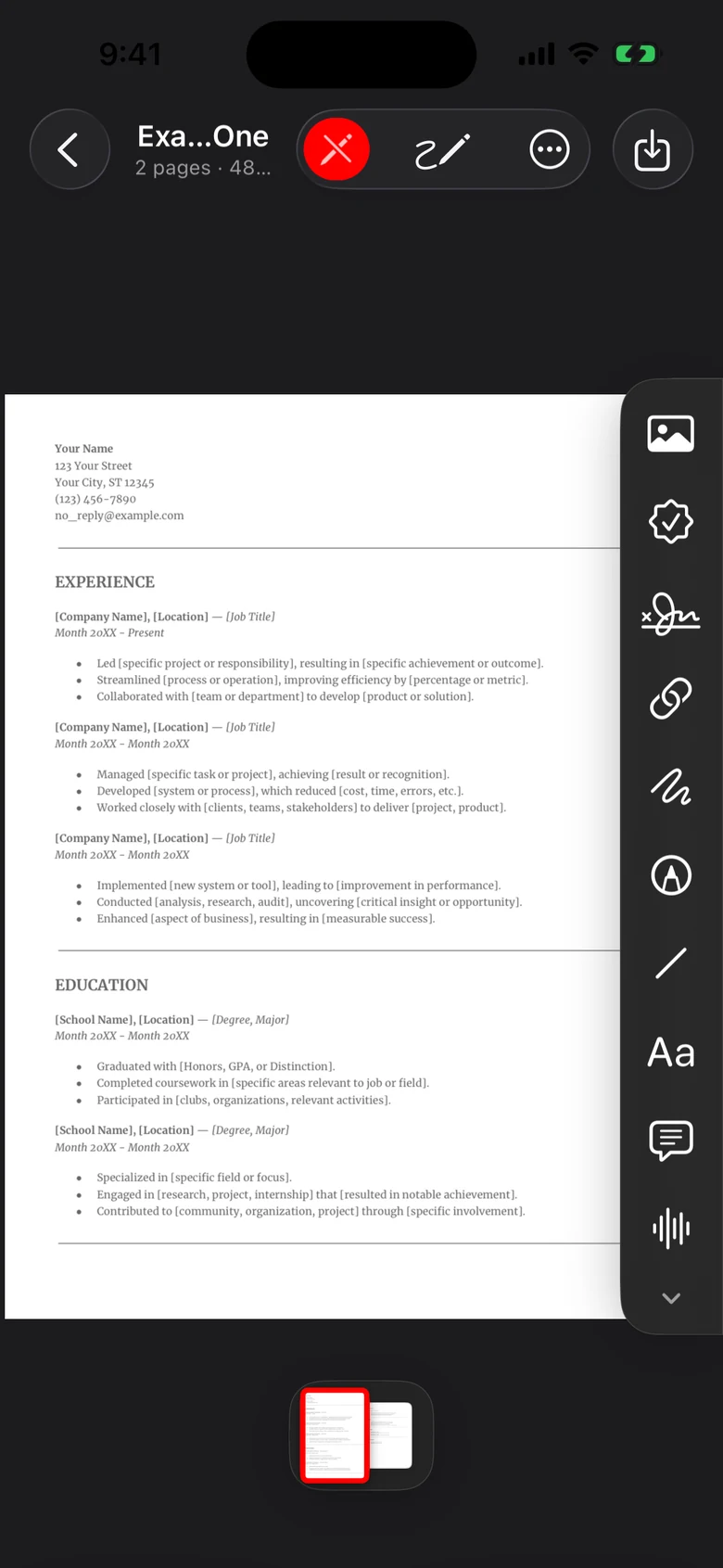
Tap any PDF in Files. Pinch to zoom, swipe to turn pages, and use the page strip at the bottom to jump around.
Tap the pencil
The red pencil in the top bar switches editing on and slides the tool rail in on the right. Tap it again when you are done.
Pick a tool
Image, stamp, signature, link, pen, highlighter, line, text, comment and voice note. Choose one, then tap or drag on the page.
Save
Tap the download button at the top right. Your changes are written into the file, and it lands in Files, ready to share.
Everything on one rail
Image
Place a picture anywhere on the page.
Stamp
Approved, Draft, Confidential and your own.
Signature
Draw, type or add yours. Save it to reuse.
Link
Make an area open a website or a page.
Pen
Draw freely with your finger or Apple Pencil.
Highlighter
Yellow for ideas, green for extras, red for fixes.
Text
Type anywhere. Change size, font and color.
Voice note
Record a note and attach it to the page.
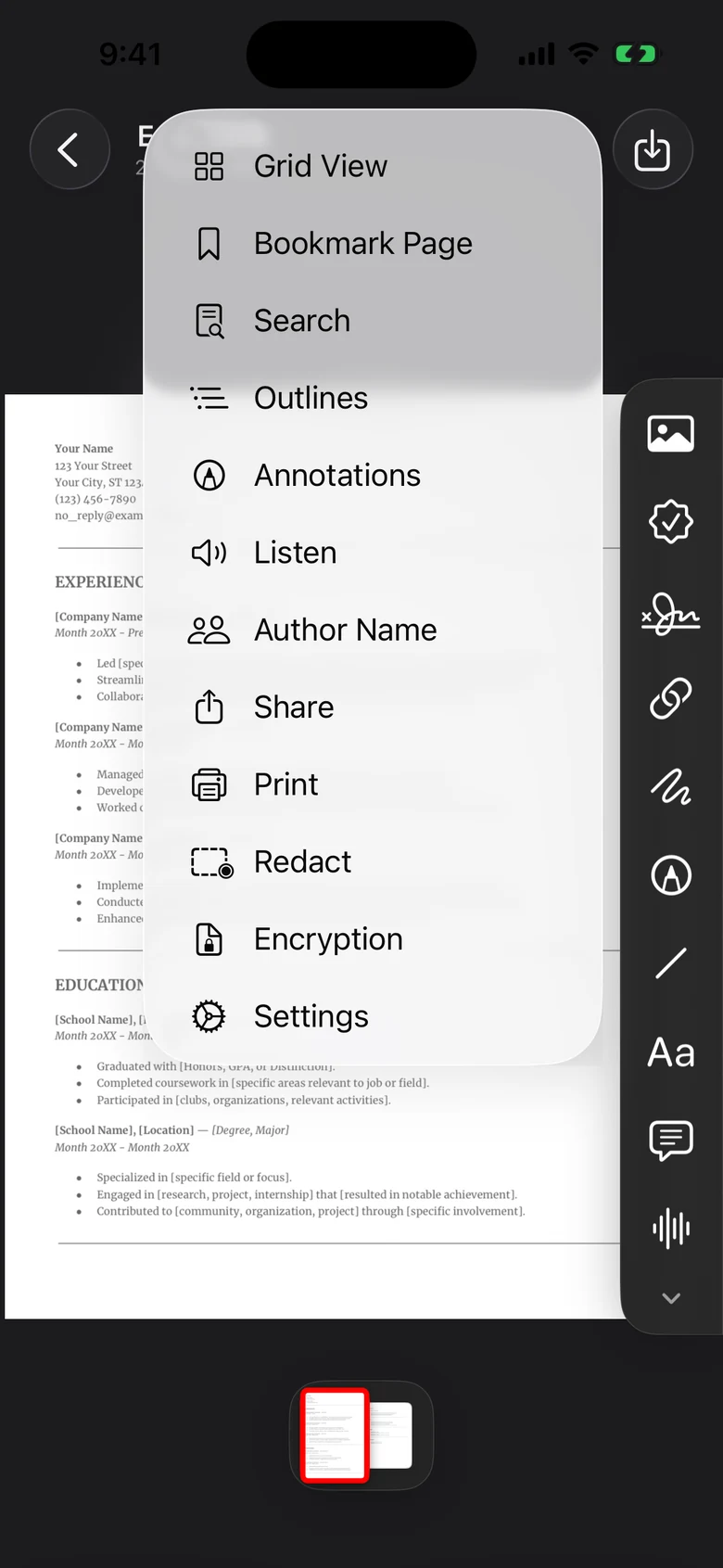
More than markup
Tap the three dots for everything else you can do with the open file.
The Image Editor
Tap any photo in Files. Five tabs at the bottom, undo and redo at the top, ✓ to save.
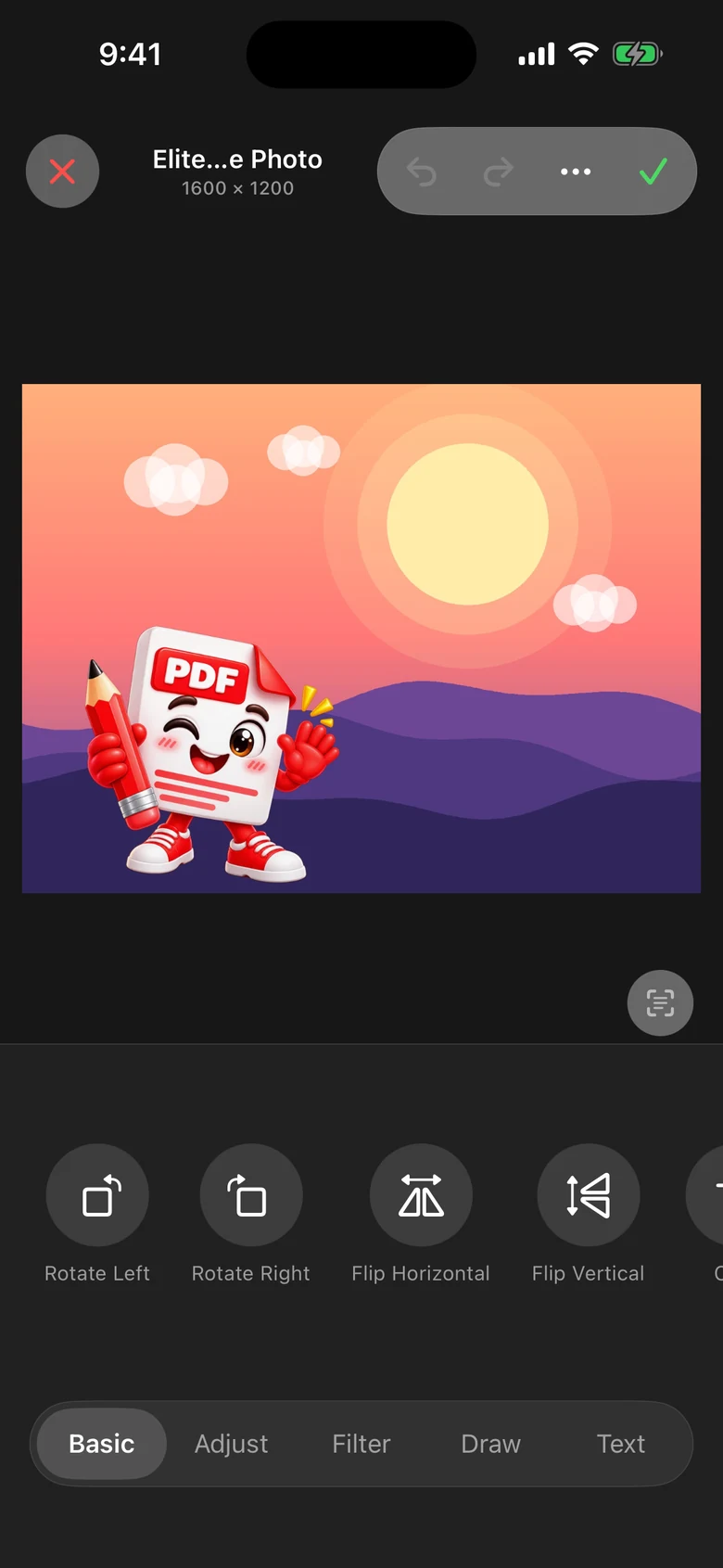
Fix the frame
Straighten a tilted photo or change its shape with one tap. Crop opens a full-screen cropper where you can drag the corners or pick a ratio. Reset brings the original back any time.
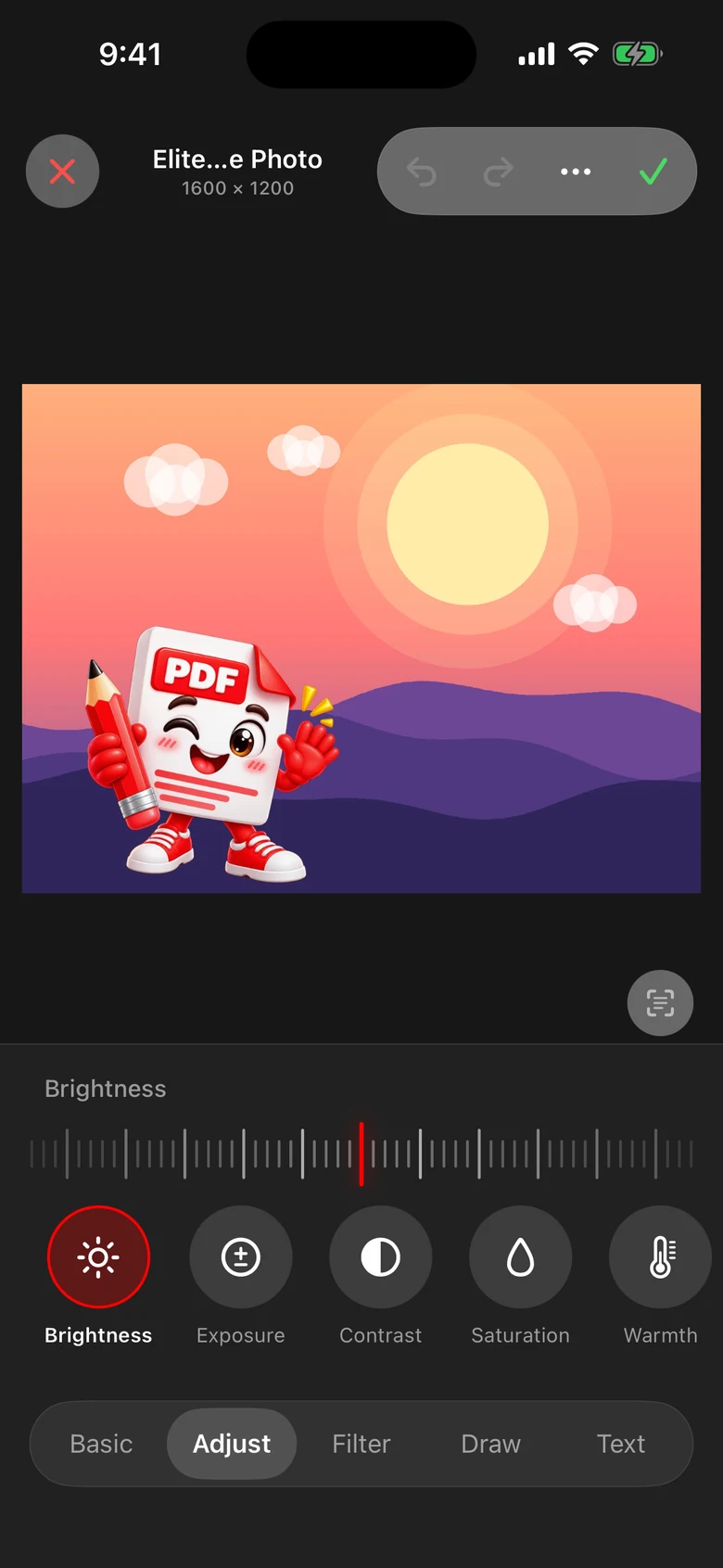
Fine-tune the light
Pick a control, then slide the ruler left or right. The mark in the middle means untouched, and the photo updates live as you slide.
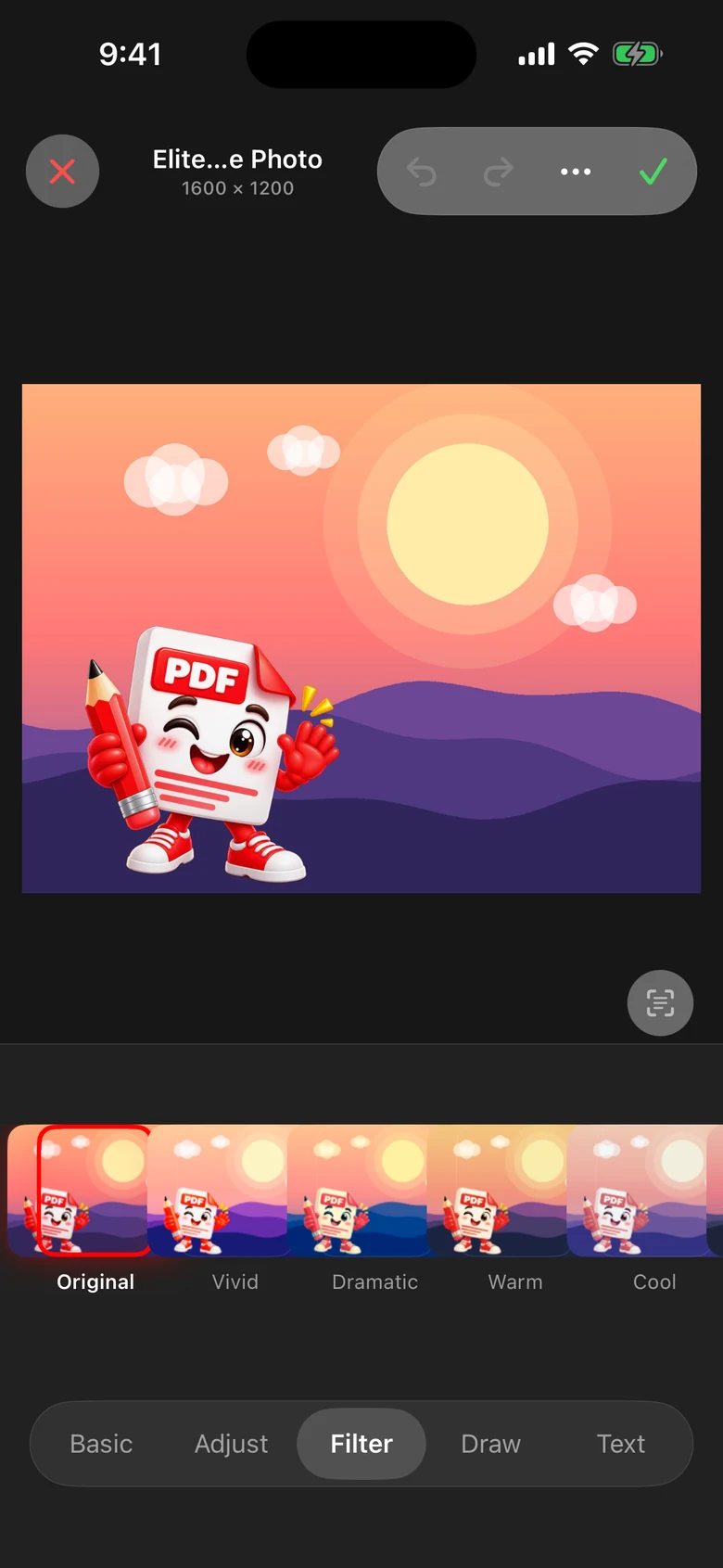
One tap, new mood
Swipe through thirteen looks and tap one to apply it. Tap Original to go back, or combine a filter with the Adjust tab for a look that is all yours.
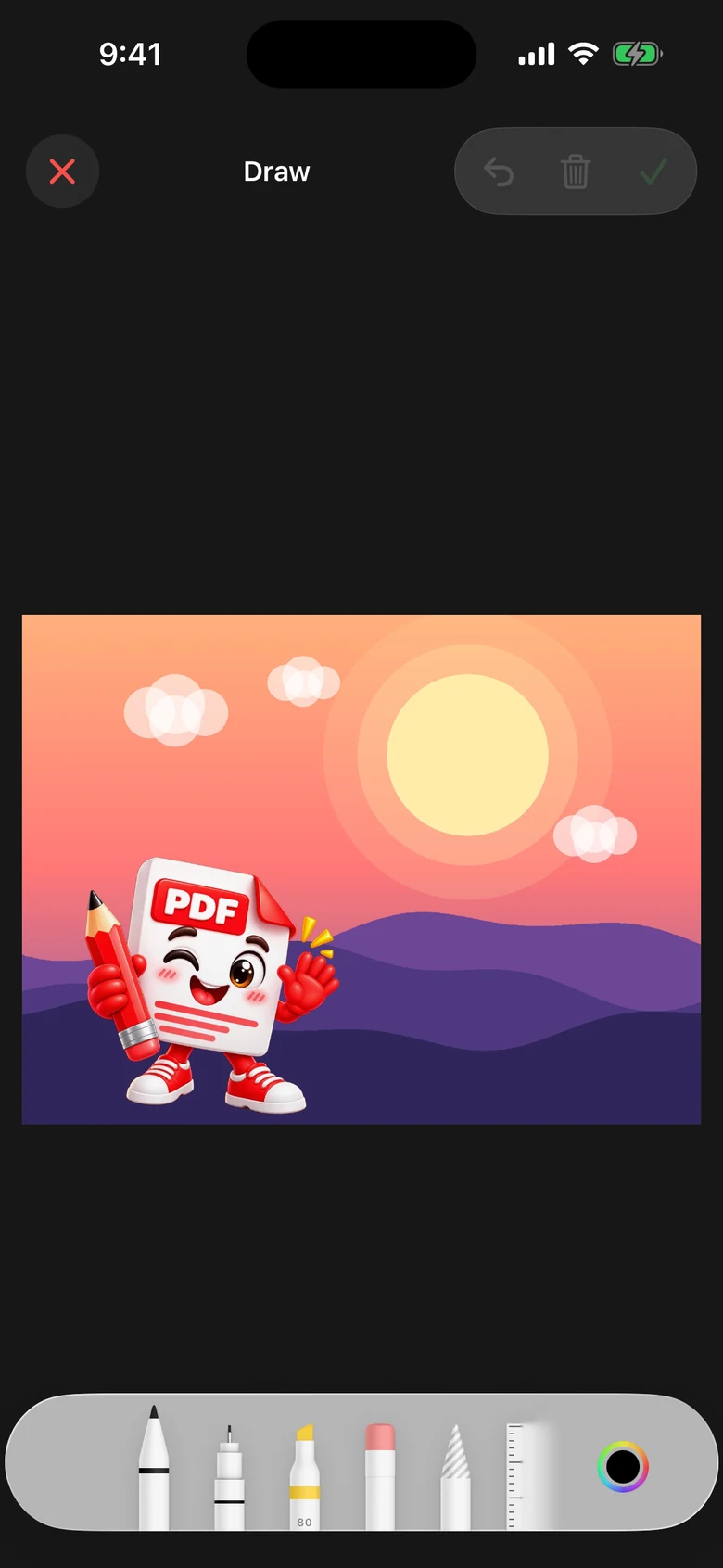
Sketch on the photo
Pick a pen, highlighter or eraser from the bar at the bottom, choose a color, and draw with your finger or Apple Pencil. Use the ruler for straight lines, undo for mistakes, and the bin to clear the drawing.
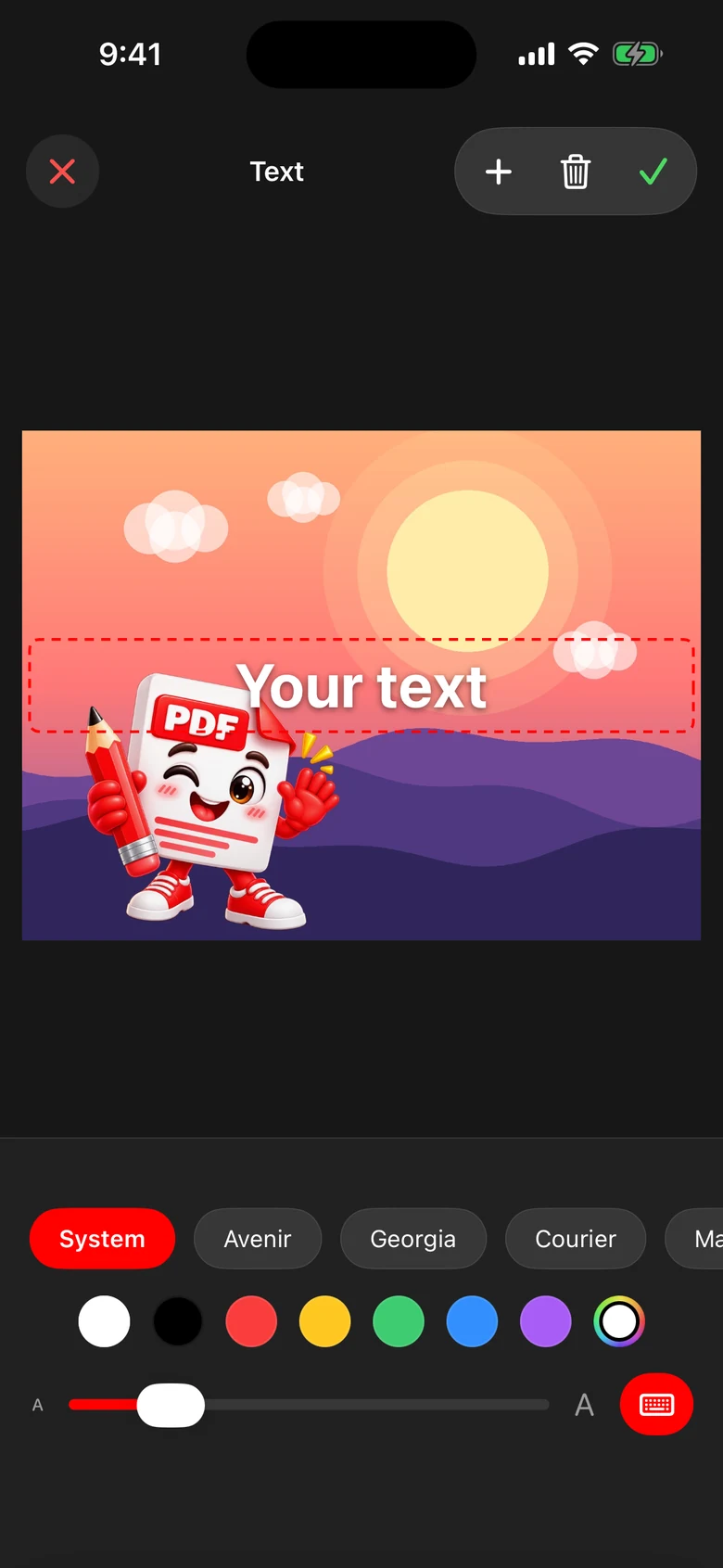
Add captions and labels
Tap Add Text, type your words, then drag the box to move it. Choose the font, color and size, tap + for more text boxes, or the bin to delete one. Handy for captions and watermarks.
Tap ⋯ at the top for tools that work on the whole image: Information, Share, Save a Copy, Resize, Compress, Convert Format, Image to PDF and Extract Text.
Download the guides
The same guides, as printable PDFs. They are also inside the app under Settings → What's New.
Ready to try it?
Elite PDF is free to start. Scan, edit, annotate and sign PDFs on your iPhone.
Download on the App Store